Deskwise Picks
Browse
Desks

MacBook Dual-Monitor Dock Compatibility by Apple Chip

Current retailer option

Plugable USBC-6950PDZ DisplayLink Dock

Open the named Plugable USBC-6950PDZ DisplayLink Dock listing to compare the live price, availability, delivery, seller, and returns.

Identify the exact Mac chip, native external-display limit, clamshell requirement, and whether a DisplayLink workaround is acceptable before buying a dock.

Prepared by the Deskwise Picks editorial deskUpdated August 6, 2026

Quick answer

The practical answer

Open About This Mac and record the chip, year, screen size, and port type. 'MacBook Pro' or 'USB-C Mac' is not specific enough because base, Pro, Max, and Ultra chips expose different display capabilities.

Direct answer to the buying question

Which dock can run two monitors on a MacBook?

Start with the exact Mac chip and model, because a dock cannot create native display support the host does not provide. Choose a native Thunderbolt path when the Mac already supports the required displays. Choose DisplayLink only when software-driven expansion solves a real base-model limit and its driver, protected-content, update, and workflow tradeoffs are acceptable.

Page structure updated August 13, 2026Evidence checked August 6, 2026Reconfirm exact model and current terms

Related search answers

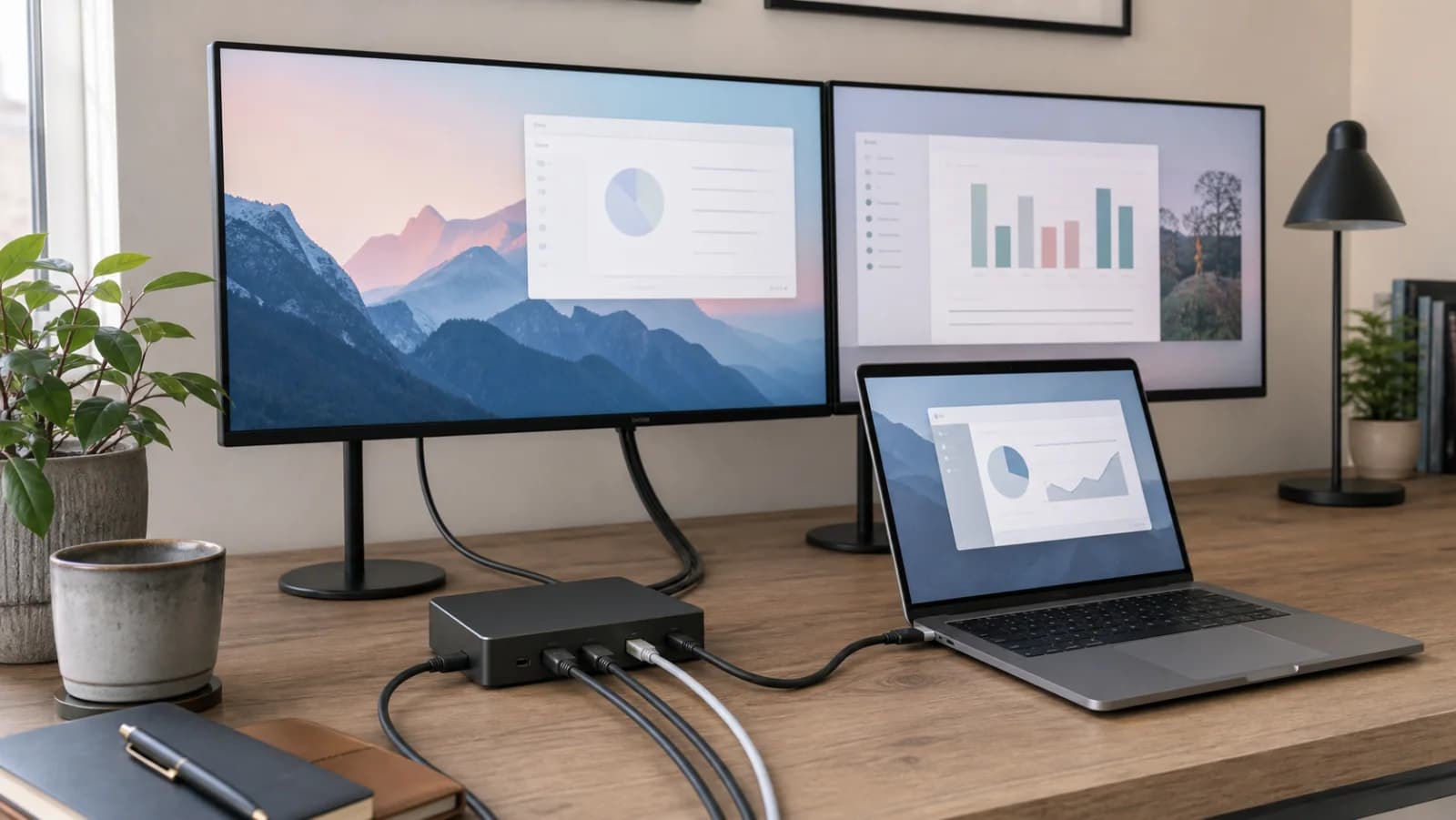
Laptop connected through a dock to two external monitors on a home-office desk
Editorial image for visual context; device appearance and configuration can vary by model and region.

1. Identify the exact chip and Mac model

Open About This Mac and record the chip, year, screen size, and port type. 'MacBook Pro' or 'USB-C Mac' is not specific enough because base, Pro, Max, and Ultra chips expose different display capabilities.

2. Separate native displays from DisplayLink displays

A native Thunderbolt dock transports display streams supplied by the Mac. DisplayLink uses software and a USB graphics chipset to create office displays beyond that native count. Product pages that mix these paths can make compatibility look simpler than it is.

3. Check clamshell requirements

Base M3 dual-display support is commonly documented with the built-in display closed. Verify power, keyboard, mouse, sleep, wake, and ventilation behavior in the actual clamshell setup before relying on it every day.

4. Decide whether DisplayLink compromises are acceptable

For documents, coding, email, and dashboards, DisplayLink can be practical. Protected video, gaming, 3D, color-critical editing, IT restrictions, and screen-recording permission can make it the wrong route.

5. Draw every display cable

Record monitor input, resolution, refresh target, cable, adapter, and the exact dock port. A Thunderbolt logo does not guarantee that every combination of two high-resolution displays, adapters, and refresh rates fits the host bandwidth and DSC path.

6. Test before the return window closes

Test cold boot, login, sleep, wake, clamshell, conferencing, fullscreen video, Ethernet, charging under load, external storage, and display arrangement. Repeat the most important tests after major OS updates.

Side-by-side checks

First-pass Mac dock decision

CheckMac pathNative external displaysPractical two-screen route
Base M1 / M2One through native dockDisplayLink for two office displaysConfirm before purchase
Base M3Vendor guidance: two in clamshellNative dock with lid closed, or DisplayLink after checking workflowConfirm before purchase
Pro / Max / UltraVaries by exact chip and modelCheck Apple and dock matrix, then use native ThunderboltConfirm before purchase
Newer base chipsVaries by exact generationConfirm current Apple and dock-vendor documentationConfirm before purchase

Primary sources

References used for this guide

Buying framework

What to check before you choose

Checklist

  • Measure the desk, chair clearance, monitor distance, wall outlet path, and device count first.
  • Check return policy for body-fit products such as chairs, desks, arms, and lighting.
  • Confirm compatibility with your laptop, monitor weight, desk edge, cable path, and room lighting.

Common mistakes

  • Buying an ergonomic-looking product without checking the adjustment range.
  • Solving visual clutter before solving posture, power, and daily connection friction.
  • Assuming one accessory can fix a desk layout that lacks depth or cable slack.

Category checks

  • Depth and cable path usually matter more than desktop width.
  • Standing setups need safe slack through the full height range.
  • Measure the room path, chair pullout, and outlet location before buying.

Decision rule

Spend more when the product affects daily posture or every workday setup; spend less when the item is only organizing a stable setup you already like.

Related guide

USB-C Dock Ports Explained: DisplayLink, Thunderbolt and Dual Screens

Decode USB-C, Thunderbolt, DisplayLink, charging, video streams, Ethernet, and cable bandwidth before buying a one- or two-monitor dock.

Related guide

USB-C Dock vs Monitor Hub: Which Home Office Upgrade Should You Buy?

Choose a standalone dock or USB-C monitor hub by exact laptop display support, replaceability, charging, Ethernet, DisplayLink needs, and the cable you touch every day.

Related guide

USB Switch vs. KVM vs. Dock for Two Computers

Choose the device by what must move between computers: peripherals, displays, charging, Ethernet, or the entire desk.

Related guide

DP Alt Mode Driver vs DisplayLink: Portable Monitor Guide

Learn why DP Alt Mode normally has no separate driver download, when DisplayLink software is required, and how to verify USB-C video, power, HDMI, cable, and host support before buying a portable monitor.

Related product guide

Plugable USBC-6950PDZ DisplayLink Dock

A DisplayLink-based dual-HDMI dock for two extended 4K60 office displays, including base M-series Mac support, driver and screen-recording permissions, 82W host charging, and protected-video or gaming limitations.

Related product guide

Plugable TBT4-UD5 Thunderbolt 4 Dock

A driverless 13-port Thunderbolt 4 dock with two HDMI outputs, dual 4K60 support on compatible hosts, 100W power delivery with 96W certified, Gigabit Ethernet, and exact Mac-chip limits.

Related product guide

CalDigit TS4 Thunderbolt 4 Dock

A premium 18-port Thunderbolt 4 dock with 98W host charging, 2.5GbE, DisplayPort, downstream Thunderbolt, extensive USB and audio, and host-dependent dual-display support.

Related comparison

Best Dual-Monitor Docks for Mac and Windows

Choose a dual-monitor dock by exact Mac chip, native Thunderbolt display support, DisplayLink permission, protected-video needs, charging, and Ethernet speed.

Related comparison

DisplayLink vs Thunderbolt Dock for Dual Monitors

Compare software-driven DisplayLink with native Thunderbolt by Mac chip, screen count, HDCP, motion, permissions, charging, and long-term maintenance.

MacBook Dual-Monitor Dock Compatibility by Apple Chip