Deskwise Picks
Browse
Desks

DisplayLink vs Thunderbolt Dock for Dual Monitors

Current retailer option

Plugable USB-C Dual HDMI Docking Station, USBC-6950PDZ

Best for two office displays on base m-series macs that allow displaylink software. Open the listing to compare the live price, availability, delivery, seller, and returns.

Check current price & availability on Amazon

Current price & availability · purchase link

Review details

Compare software-driven DisplayLink with native Thunderbolt by Mac chip, screen count, HDCP, motion, permissions, charging, and long-term maintenance.

Updated July 22, 2026

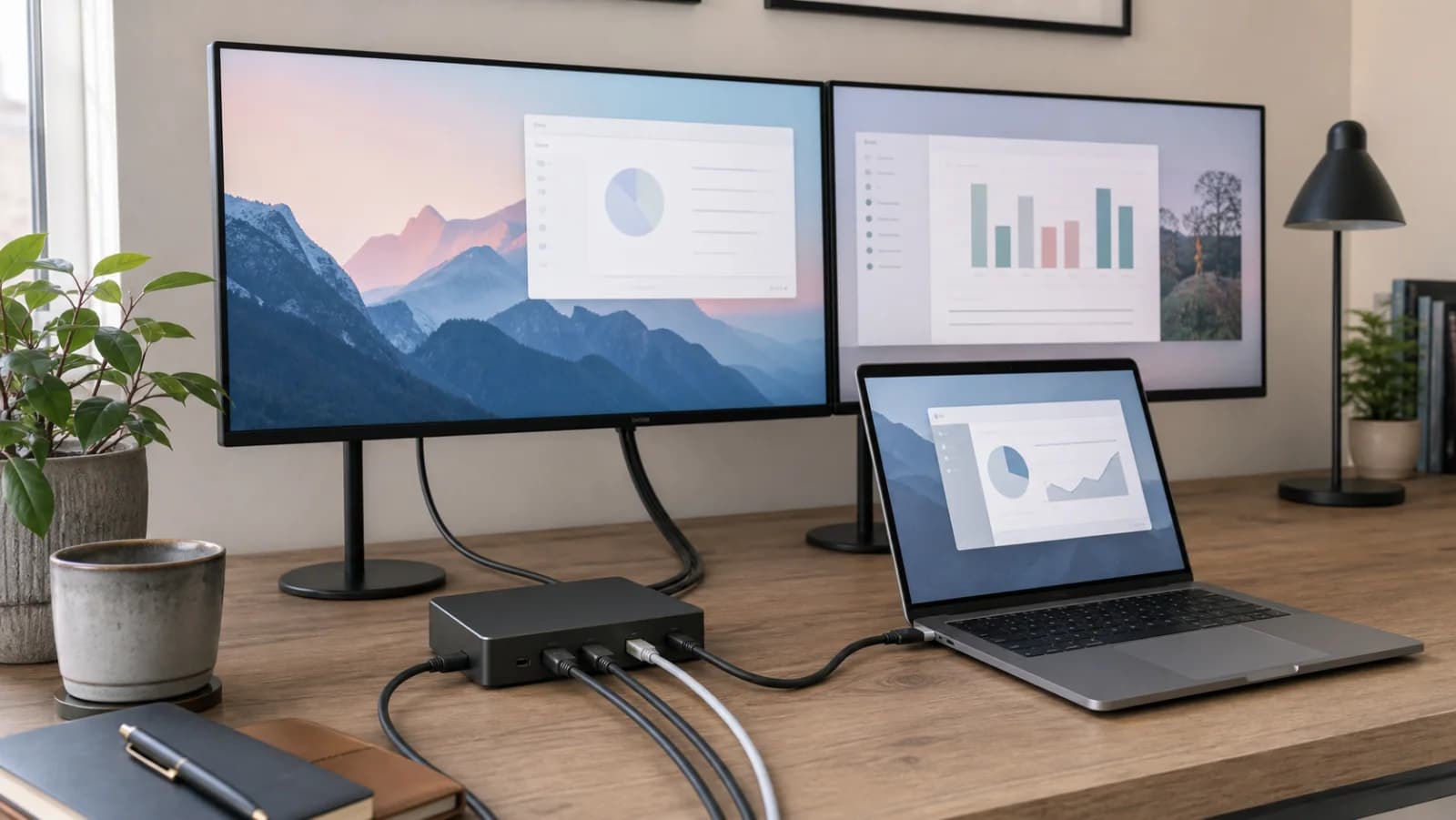
DisplayLink and Thunderbolt are not faster and slower versions of the same dock. One sends screen frames through USB software; the other transports native display streams supplied by the host. Choose the mechanism before the brand.

Quick answer

Start with Plugable USBC-6950PDZ DisplayLink Dock if your main need is two office displays on base m-series macs that allow displaylink software. Compare the trade-offs before buying, especially requires displaylink software; macos requires screen-recording permission.

Related search answers

How links work: As an Amazon Associate I earn from qualifying purchases, at no extra cost to you.

Prices, availability, shipping, coupons, and seller details can change. Always confirm the current product listing and return policy before buying.

Quick comparison

Start here if you already know the job you need the product to solve.

1

Plugable

Plugable USB-C Dual HDMI Docking Station, USBC-6950PDZ

Best for

Two office displays on base M-series Macs that allow DisplayLink software

Check first

Requires DisplayLink software; macOS requires screen-recording permission

Facts

ASIN B0BKLT853Z · desks

2

Plugable

Plugable Thunderbolt 4 Dock, TBT4-UD5

Best for

Compatible Thunderbolt 4 or USB4 laptops needing driverless dual 4K60 HDMI

Check first

Base M1 and M2 Macs remain limited to one external display

Facts

ASIN B0CNTTVVN6 · desks

3

CalDigit

CalDigit TS4 Thunderbolt 4 Dock

Best for

Premium native Thunderbolt desks with 2.5GbE and many peripherals

Check first

Premium price is wasted when most ports remain empty

Facts

ASIN B09GK8LBWS · desks

Compare the current options

Match the exact model, bundle, seller, coupon, and return window before choosing between the picks.

PickKey fit detailsExact listingWhat can changeUpdated
Plugable USB-C Dual HDMI Docking Station, USBC-6950PDZModel: USBC-6950PDZ · Display: 2 x HDMI, up to 4K60 through DisplayLinkASIN B0BKLT853ZConfirm ASIN B0BKLT853Z, DisplayLink model, seller, charger inclusion, delivery, and return terms.July 22, 2026
Plugable Thunderbolt 4 Dock, TBT4-UD5Model: TBT4-UD5 · Host: Thunderbolt 4, Thunderbolt 5, or USB4 for full dual-display pathASIN B0CNTTVVN6Confirm ASIN B0CNTTVVN6, host-chip support, seller, delivery, and return terms.July 22, 2026
CalDigit TS4 Thunderbolt 4 DockModel: TS4 · Ports: 18 total listedASIN B09GK8LBWSConfirm ASIN B09GK8LBWS, TS4, regional power supply, seller, delivery, and return terms.July 22, 2026

Quick picks by situation

Two screens on base M1/M2

DisplayLink is the practical path if software installation is allowed.

Video, 3D, gaming or protected streaming

Prefer native Thunderbolt on a host that supports the required display count.

Managed work laptop

Ask IT whether DisplayLink and screen-recording permission are permitted before ordering.

Unknown Mac chip

Stop and identify it first; dock ports cannot answer the question.

Choose DisplayLink for a display-count workaround

It is most useful on base M1 and M2 Macs or another host that cannot natively provide the required number of office displays. Budget for software installation, permissions, updates, and workload limitations.

Choose Thunderbolt for the native path

It avoids the DisplayLink capture layer and fits protected video, motion, media, and color work better, but only when the host natively exposes enough display streams.

A return window is part of compatibility

Test sleep and wake, clamshell mode, login-screen behavior, display arrangement, protected video, conferencing, Ethernet, charging, and every required peripheral before the return period closes.
How to choose without overbuying

When to spend more

Spend more when stability, height range, cable movement, and desktop depth affect every workday.

When to spend less

Spend less when the desk is secondary, the setup is laptop-only, or accessories can solve the main constraint.

Compare these details first

Desktop depth and room path
Height range
Cable slack
Assembly and return path

Related setup and buying guides

Plugable USB-C Dual HDMI Docking Station, USBC-6950PDZ

Plugable

Plugable USB-C Dual HDMI Docking Station, USBC-6950PDZ

A DisplayLink-based dual-HDMI dock for two extended 4K60 office displays, including base M-series Mac support, driver and screen-recording permissions, 82W host charging, and protected-video or gaming limitations.

Best for: Two office displays on base M-series Macs that allow DisplayLink software

Main caution: Requires DisplayLink software; macOS requires screen-recording permission

Plugable Thunderbolt 4 Dock, TBT4-UD5

Plugable

Plugable Thunderbolt 4 Dock, TBT4-UD5

A driverless 13-port Thunderbolt 4 dock with two HDMI outputs, dual 4K60 support on compatible hosts, 100W power delivery with 96W certified, Gigabit Ethernet, and exact Mac-chip limits.

Best for: Compatible Thunderbolt 4 or USB4 laptops needing driverless dual 4K60 HDMI

Main caution: Base M1 and M2 Macs remain limited to one external display

CalDigit TS4 Thunderbolt 4 Dock

CalDigit

CalDigit TS4 Thunderbolt 4 Dock

A premium 18-port Thunderbolt 4 dock with 98W host charging, 2.5GbE, DisplayPort, downstream Thunderbolt, extensive USB and audio, and host-dependent dual-display support.

Best for: Premium native Thunderbolt desks with 2.5GbE and many peripherals

Main caution: Premium price is wasted when most ports remain empty

FAQ

Why does DisplayLink ask for screen-recording permission on Mac?

DisplayLink needs access to screen frames to transport them over USB. Plugable states that the dock does not save or record the data, but managed-device security policy can still block permission.

Can a Thunderbolt dock bypass Apple's display limit?

No. A native dock can expose the host's available display streams but cannot create an additional native stream on a one-display chip.

Which path is better for office work?

DisplayLink can be entirely practical for documents, browsers, dashboards, and development tools. Native Thunderbolt is the lower-compromise path when the host already supports the required screens.

Sources and methodology

  • Compared display transport mechanisms rather than connector labels
  • Kept exact host-chip limits visible
  • Used official Plugable and CalDigit compatibility documentation
  • Included software-policy and protected-content failure modes
DisplayLink vs Thunderbolt Dock for Dual Monitors on Mac