Wireless Presentation Clicker Guide: USB, Bluetooth, Range, and Controls
Current retailer option
QUI Presentation Clicker with Volume Control, Wireless Presenter Remote | Plug & Play 2.4GHz USB Slide Advancer Compatible with Mac/Windows, Works with PowerPoint, Keynote, and Google Slides
Open the exact family listing to compare the live price, availability, delivery, seller, and returns.
Choose a presentation remote by receiver or Bluetooth path, operating-system support, slide-app shortcuts, range, laser rules, button layout, battery, travel storage, and fallback.
Prepared by the Deskwise Picks editorial deskUpdated August 11, 2026
Quick answer
The practical answer
Choose a USB receiver for simple plug-in pairing on computers with an allowed port; choose Bluetooth when ports are scarce and host pairing is permitted. Confirm the exact operating system, slide application, forward/back behavior, screen blanking, volume, pointer type, range, and receiver storage. Test on the actual presentation computer and carry keyboard and duplicate-file fallbacks because conference security policies can block either radio path.
Common buying question
Should I buy a USB receiver or Bluetooth presentation clicker for PowerPoint, Google Slides, and conference-room laptops?
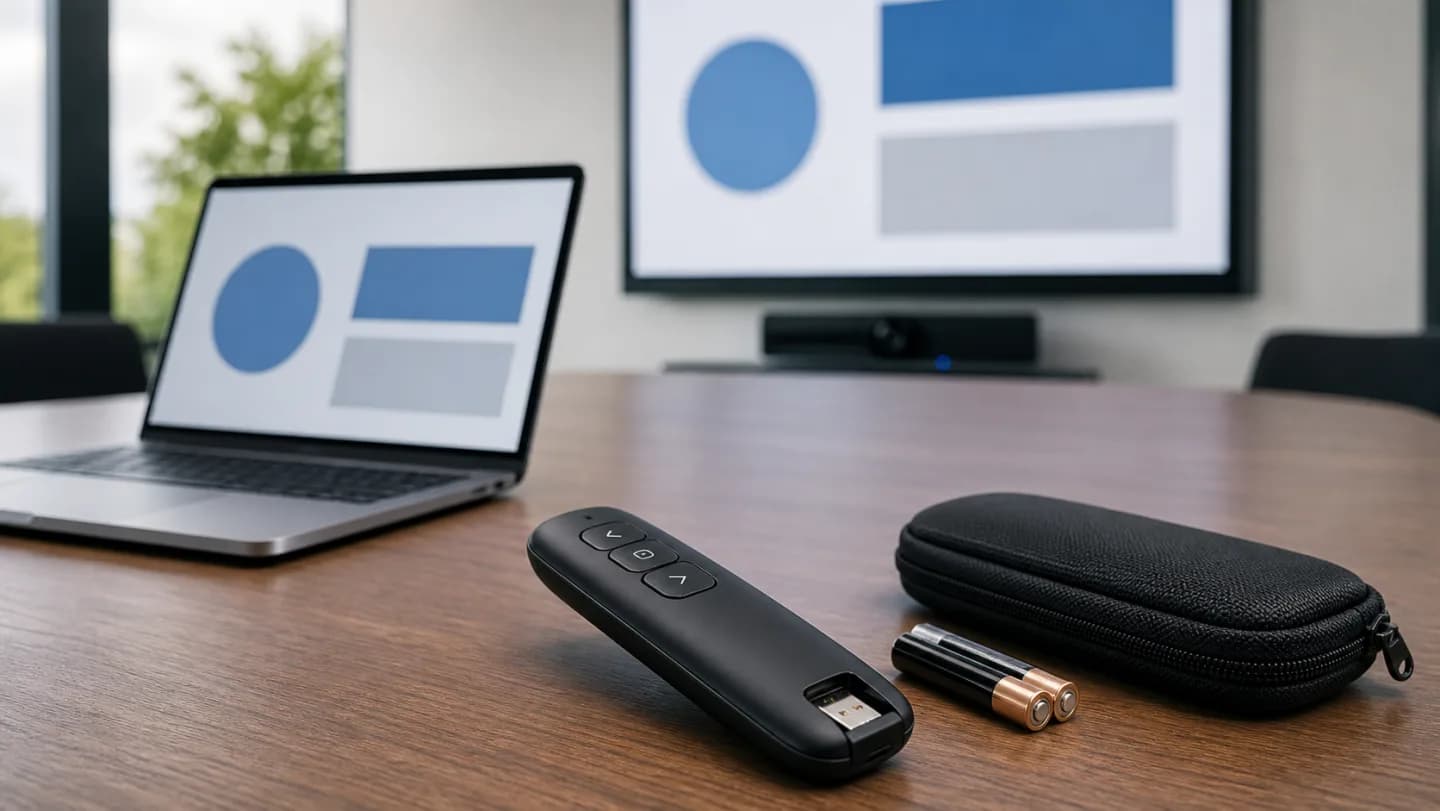
Original editorial image for category, fit, and use context; verify the exact linked product appearance and configuration on the retailer page.
Match the radio to the host environment
A dedicated 2.4GHz receiver often pairs automatically but consumes a USB port and can be lost. Bluetooth preserves ports but requires pairing permission and a remembered device. Ask whether the venue laptop allows new USB devices or Bluetooth accessories, and whether adapters will be used. Bring the remote early enough to test rather than pairing while the audience waits.
Confirm the exact key behavior
Many remotes send keyboard commands, so slide control depends on application focus and shortcut support. Test forward, back, blank screen, volume, hyperlink, media, and long-press actions in the exact app and browser. Disable or avoid unfamiliar buttons. A simple two-button remote can be safer than feature-rich controls when multiple presenters share it.
Evaluate range in the real room
Quoted open-space range does not account for the laptop under a metal lectern, receiver orientation, crowded 2.4GHz spectrum, presenter body blocking, or batteries near depletion. Walk every planned position with doors closed and the production laptop connected. If the talk depends on a confidence monitor or separate control booth, rehearse that complete signal path.
Use pointers with venue awareness
A traditional laser may be hard to see on bright LED displays and must never be aimed at people, cameras, vehicles, or aircraft. Some venues restrict lasers entirely. Digital spotlight and magnification tools can be safer and visible on shared screens, but may require software installation. Confirm the audience, display technology, rules, and remote's exact implementation.
Build a no-clicker fallback
Store the receiver in a captive compartment, carry required adapters, install a fresh battery or fully charge before travel, and know the sleep/wake behavior. Keep a keyboard operator or accessible arrow keys, plus local and cloud copies of the deck. The remote should reduce stage friction, not become a single point of failure for the presentation.
Current Amazon option
Check this exact product
QUI Presentation Clicker with Volume Control, Wireless Presenter Remote | Plug & Play 2.4GHz USB Slide Advancer Compatible with Mac/Windows, Works with PowerPoint, Keynote, and Google Slides
ASIN
B09DQ7872W
Brand
QUI
Listing checked
8/11/2026
Compare the current title, ASIN, variant, seller, stock, shipping, price, and return path before ordering.
Exact US listing reference. Confirm the selected variation, seller, included parts, live availability, and any applicable recall notice before buying.
Public owner context
Questions to answer before buying
Community discussions help surface installation, fit, maintenance, and failure questions. They are anecdotal context, not product specifications or a substitute for current instructions.
Used to locate real owner questions and failure reports that shape the inspection checklist. Anecdotes are not presented as measured product tests or copied as endorsements.
Research notes
How we evaluated these choices
1.List every presentation host, operating system, app, adapter, and venue restriction before choosing radio type.
2.Verify exact button mappings and practice with the same slide format and presenter view used at the event.
3.Walk the real room, test range from presentation positions, and confirm pointer visibility without aiming at people.
4.Pack fresh power, receiver and adapter storage, a keyboard fallback, and an offline copy of the presentation.