Deskwise Picks
Browse
Ergonomics

Vertical Laptop Stand Buying Guide: Slot Fit, Stability, and Closed-Lid Cooling

Current retailer option

Satechi Dual Vertical Laptop Stand ST-ADVSM

Check current price & availability on Amazon

Current price & availability · purchase link

Compare picks

Open the exact family listing to compare the live price, availability, delivery, seller, and returns.

Choose an upright laptop holder by device thickness with its case, base footprint, center of gravity, padding, cable clearance, one- or two-device capacity, closed-display requirements, ventilation, and desk collision risk.

Prepared by the Deskwise Picks editorial deskUpdated August 10, 2026

Quick answer

The practical answer

Measure each laptop at its thickest point with the case attached, then choose a padded slot or adjustable grip that holds it upright without pressing the lid. Prioritize a wide, weighted, non-slip base and a straight lift-out path. Verify closed-display, power, thermal, and external-monitor behavior separately because the stand does not enable clamshell mode by itself.

Common buying question

Which vertical laptop stand should I buy for a closed-lid MacBook or two work laptops without scratching or tipping them?

Existing adjustable laptop-stand pages assume the screen remains open and focus on viewing height; they do not decide slot width, two-device balance, lid pressure, or docked closed-display operation.

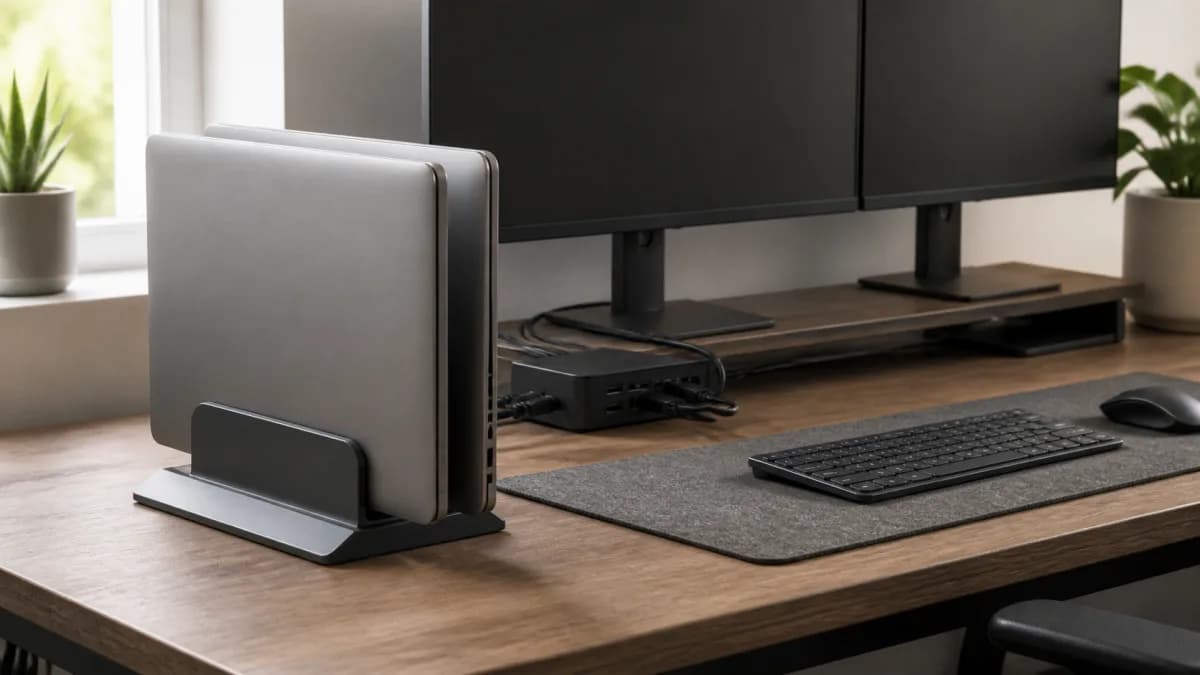
Editorial desk with two laptops stored vertically beside a monitor, dock, keyboard, and managed cables
Original editorial image for category, fit, and use context; verify the exact linked product appearance and configuration on the retailer page.

Measure the real device, not the product family

Laptop generations, feet, tapered edges, hard shells, skins, and sleeves change effective thickness. Measure at the point that will sit in the slot and note whether the stand grips the center or a tapered edge. An adjustable design provides range, but it still needs even padded contact without forcing the display and base together or allowing uncontrolled lean.

Test stability during removal

A stand can feel solid with two devices installed yet move when one is lifted. Check base width, mass, non-slip feet, slot spacing, device center of gravity, and the direction of cable pull. Place it away from desk edges and pet or child traffic. If the stand must be held down with one hand during every removal, the workspace fit is incomplete.

Route cables so they do not become levers

Identify which ports stay connected and whether plugs exit upward, sideways, or toward the desk. Leave enough slack for a clean lift, preserve cable bend radius, and anchor the cable bundle independently of the laptop. A rigid dock cable or heavy adapter hanging sideways can rotate the device in the slot and transmit desk movement directly to its ports.

Verify the computer's closed-display requirements

A vertical stand stores the computer; it does not change operating-system policy. Confirm the laptop maker's requirements for external power, display, keyboard, pointing device, sleep, wake, and lid behavior. If fingerprint, power, or recovery controls become inaccessible, decide how they will be reached. Test updates and restart flows, not only the normal logged-in desktop.

Watch heat and contact wear

Keep vents and exhaust paths clear and compare closed-lid use with the computer's thermal guidance. Vertical orientation may expose some surfaces but can obstruct others depending on the model. Inspect silicone pads for compression, adhesive movement, and dust. Clean both stand and laptop before repeated insertion; soft padding with embedded grit can still mark an anodized or painted finish.

Current Amazon option

Check this exact product

Satechi Dual Vertical Laptop Stand ST-ADVSM

ASIN
B09WY2RLQG
Brand
Satechi
Listing checked
8/10/2026

Compare the current title, ASIN, variant, seller, stock, shipping, price, and return path before ordering.

Side-by-side checks

Vertical stand fit and stability checks

CheckCheckFailure mode to avoid
Device thicknessLaptop plus hard shell, skin, or sleeve at the widest pointThe slot squeezes the display or is too loose to control rocking.
BaseFootprint, weight, rubber contact, desk materialA narrow light stand tips when a cable is pulled or a device is removed.
CapacityOne or two devices and which is removed firstTaking one laptop out destabilizes the remaining asymmetric load.
Contact surfacesSilicone or padding location and replaceabilityMetal edges or trapped debris scratch the case during repeated docking.
CablesPort direction, bend radius, dock, power and unplug pathSideways tension levers the laptop or blocks a clean vertical lift.
Closed operationOS mode, external display, keyboard, mouse, power and coolingThe computer sleeps, overheats, or becomes inaccessible despite fitting the stand.

Primary sources

References used for this guide

Public owner context

Questions to answer before buying

Community discussions help surface installation, fit, maintenance, and failure questions. They are anecdotal context, not product specifications or a substitute for current instructions.
How this page was governed

Page-specific editorial method

  1. 1.Measure every device with its normal case, skin, and port adapters installed before comparing slot dimensions.
  2. 2.Simulate cable pulls, one-device removal, desk bumps, and the full vertical lift path in the intended location.
  3. 3.Verify closed-display behavior and thermal guidance from the computer maker rather than attributing it to the stand.
  4. 4.Inspect padding and clean the contact surfaces regularly so grit does not turn repeated docking into abrasion.

Related guide

Adjustable Laptop Stands Buying Guide

Which adjustable laptop stands are worth buying when the real job is to raise a laptop screen while creating a stable external-keyboard and mouse workstation? This guide turns that question into model-level checks, a reversible setup, a first-year ownership plan, and a clear skip decision.

Related guide

USB Switch vs. KVM vs. Dock for Two Computers

Choose the device by what must move between computers: peripherals, displays, charging, Ethernet, or the entire desk.

Related guide

Monitor Arm Buying Guide for Small Desks

How to check monitor weight, VESA support, clamp clearance, depth, and cable path before buying a monitor arm.

Related guide

Monitor Arm Compatibility Checklist

Check VESA pattern, monitor weight, desk clamp clearance, and cable movement before ordering an arm.

Related guide

Best Monitor Arm Setup for a Walking Desk

Choose and position a monitor arm for viewing distance, standing height, desktop stiffness, clamp fit, cable slack, and controlled movement.

Related guide

How to Reduce Monitor Wobble on a Walking Desk

Trace movement from the floor through the desk, clamp, arm, and screen before replacing a monitor arm that may not be the real cause.

Related guide

USB-C Dock vs Monitor Hub: Which Home Office Upgrade Should You Buy?

Choose a standalone dock or USB-C monitor hub by exact laptop display support, replaceability, charging, Ethernet, DisplayLink needs, and the cable you touch every day.

Related guide

Single vs. Dual Monitor Arms for a Walking Desk

Compare independent adjustment, shared-post leverage, desk stiffness, clamp load, cable movement, and how walking changes screen stability.

Related comparison

Best Home Office Cable Management Upgrades

Cable management is not just about looks: it affects cleaning, standing-desk movement, laptop docking, and whether a setup stays usable after the first week.

Vertical Laptop Stand Buying Guide: Slot Fit, Stability, and Closed-Lid Cooling